

INSTALL GUIDE
Install DeepSeek Harness Desktop on Windows
Follow these steps to download, verify, install, and complete your first project task.
1. Download the Installer
Get the current installer from the Windows download page. The page also lists its version, file size, and SHA-256 for verification.
2. Verify and Install
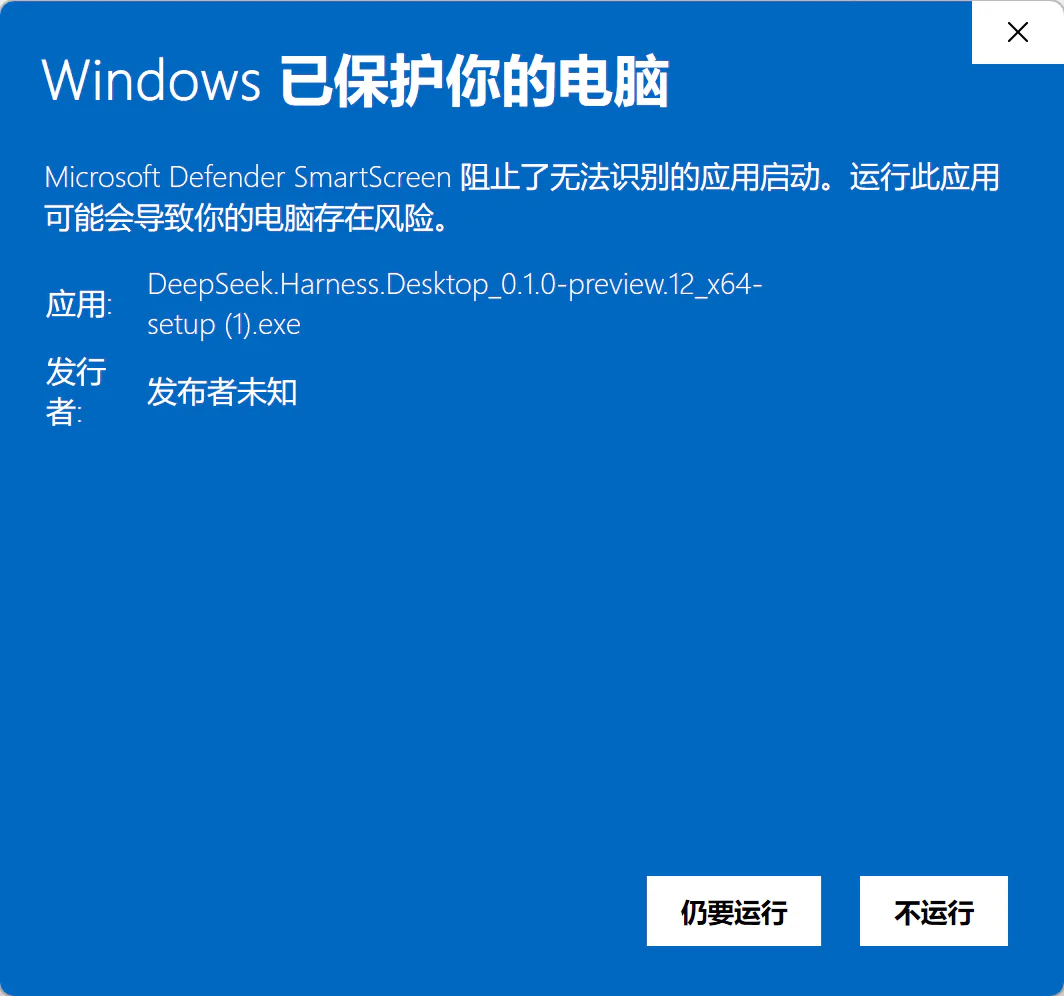
Use PowerShell to calculate the installer SHA-256 and compare every character with the download page. Without Authenticode, SmartScreen's unknown-publisher message is a known limitation, not proof that verification is complete.
Get-FileHash -Algorithm SHA256 '.\DeepSeek.Harness.Desktop_0.1.0-preview.13_x64-setup.exe'3. Complete First Launch
Launch the app and wait for the main interface. If it remains on the startup screen, open the log from the system tray and remove secrets or private paths before filing an issue.
4. Open a Project and Start a Task
Choose a project directory, use @ to reference files or earlier conversations, and share screenshots with models that support images. File changes, command output, and generated content stay in the workspace so you can keep iterating.